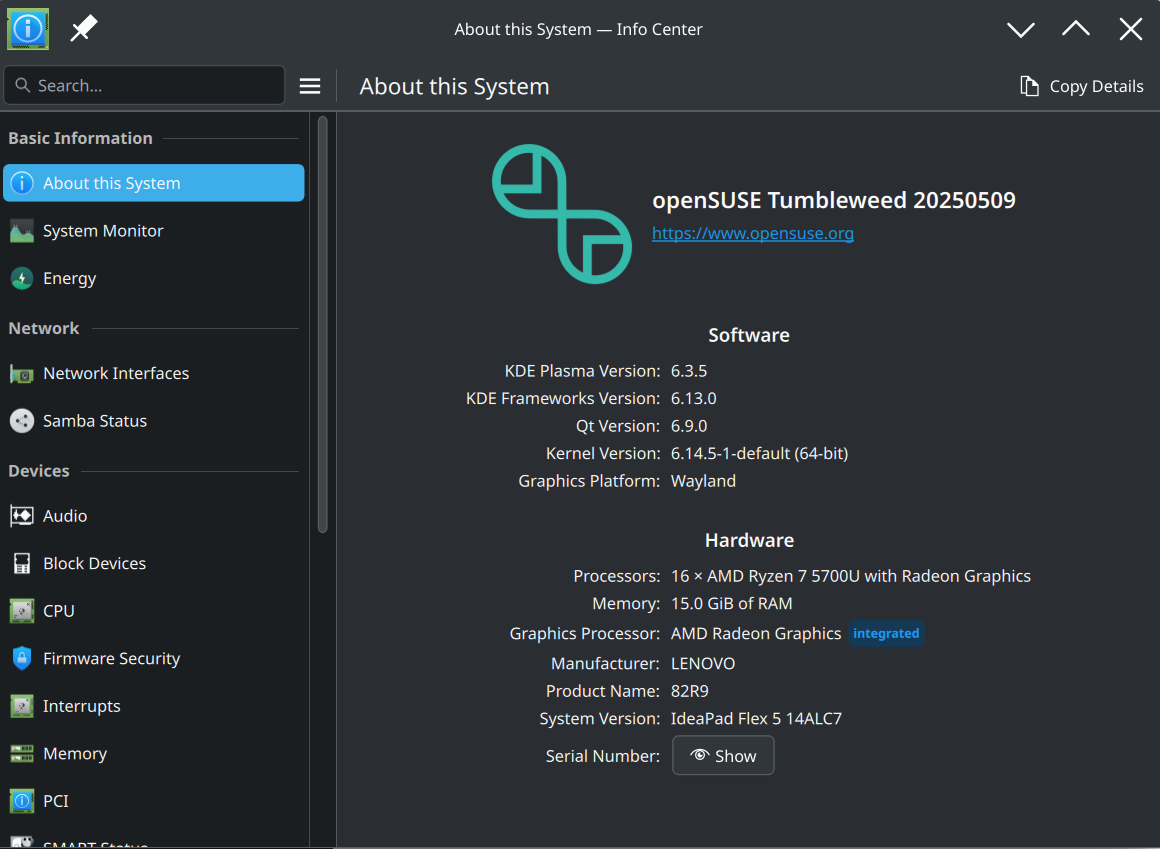


 openSUSE Tumbleweed is a rolling-release Linux distribution well-known for its stability, thanks in part to its use of Btrfs snapshots. By enabling transactional updates, users can upgrade the system atomically — updates are applied in a separate snapshot, and only take effect after a reboot. This model dramatically improves reliability and rollback safety.
I have now tested this in both Slowroll, and Tumbleweed and so far is working very well. Use at your own risk. Snapper rollback is easy if needed.
In this article, you’ll learn how to:
- Set up fully automated transactional updates
- Optionally allow package vendor changes
- Optionally update Flatpak apps as part of the transactional process
🧱 Requirements
To follow this guide, your system should:
- Use Btrfs as the root filesystem (default on openSUSE Tumbleweed)
- Be fully updated
- Be running systemd (default for openSUSE)
🛠️ Step 1: Install Required Packages
Install the core tools needed for transactional updates and automated reboots:
sudo zypper install transactional-update rebootmgr dracut-transactional-updateWhat These Packages Do:
| Package | Purpose |
|---|---|
transactional-update |
Handles snapshot-based system updates |
rebootmgr |
Schedules and manages reboots after updates |
dracut-transactional-update |
Provides services like create-dirs-from-rpmdb for proper /var handling |
🕒 Step 2: Enable Timers and Services
Enable the necessary timers and services to automate everything:
sudo systemctl enable --now transactional-update.timer transactional-update-cleanup.timer rebootmgr.service create-dirs-from-rpmdb.service
Explanation:
| Service | Role |
|---|---|
transactional-update.timer |
Runs daily system updates in a snapshot |
transactional-update-cleanup.timer |
Cleans up old snapshots |
rebootmgr |
Schedules a reboot if needed (default ~3:30 AM) |
create-dirs-from-rpmdb |
Ensures required directories under /var exist in new snapshots |
🔁 Optional: Enable Vendor Changes in Updates
By default, transactional updates do not allow vendor switching, which can prevent important updates from Packman or third-party repos. To enable this:
Step 1: Create a config file
sudo mkdir -p /etc/transactional-update.conf.d
sudo nano /etc/transactional-update.conf.d/vendor-change.conf
Step 2: Add the following content:
ZYPPER_AUTO_IMPORT_KEYS=1
ZYPPER_DUP_OPTIONS="--allow-vendor-change"
This lets transactional-update switch package vendors when needed.
🧩 Optional: Integrate Flatpak Updates
Flatpak apps live outside the system snapshot and aren’t updated as part of transactional-update. Here’s how to hook Flatpak updates into the process.
Step 1: Create the hook script
sudo mkdir -p /etc/transactional-update/hooks
sudo nano /etc/transactional-update/hooks/90-flatpak-update.sh
Step 2: Add the script:
#!/bin/bash
command -v flatpak >/dev/null || exit 0

echo "[flatpak-update] Updating Flatpak apps..."
flatpak update -y --noninteractive --no-related
Step 3: Make it executable
sudo chmod +x /etc/transactional-update/hooks/90-flatpak-update.shThis will run automatically after a successful update, just before the system is rebooted.
🧪 Testing and Verification
- Run a manual update test:
sudo transactional-update dup - Preview vendor changes before enabling:
zypper dup --allow-vendor-change --dry-run - Check status of timers:
systemctl list-timers --all
To disable
If you decide these automatic updates aren’t working for you and you want to disable it, just run the following command:
sudo systemctl disable --now transactional-update.timer transactional-update-cleanup.timer rebootmgr.service create-dirs-from-rpmdb.serviceTo read the logs
To check the transactional update logs run the following command:
sudo journalctl -u transactional-update.service --no-pager -n 50✅ Summary
| Feature | Enabled? | How |
|---|---|---|
| Automated transactional updates | ✅ | transactional-update.timer |
| Snapshot cleanup | ✅ | transactional-update-cleanup.timer |
| Auto reboot after update | ✅ | rebootmgr.service |
| Vendor switching | Optional | Custom config file |
| Flatpak updates | Optional | Transactional hook script |
🎯 Final Thoughts
With transactional updates, openSUSE Tumbleweed becomes a powerful, reliable, and self-healing system. By extending it with Flatpak integration and vendor switching, you can build a hands-off, fully updated Linux environment that’s robust and rollback-safe — perfect for both desktops and servers.
One final note: If you snapper rollback to a snapshot prior to setting this up, you will need to set this up again if you want to re-enable it.
