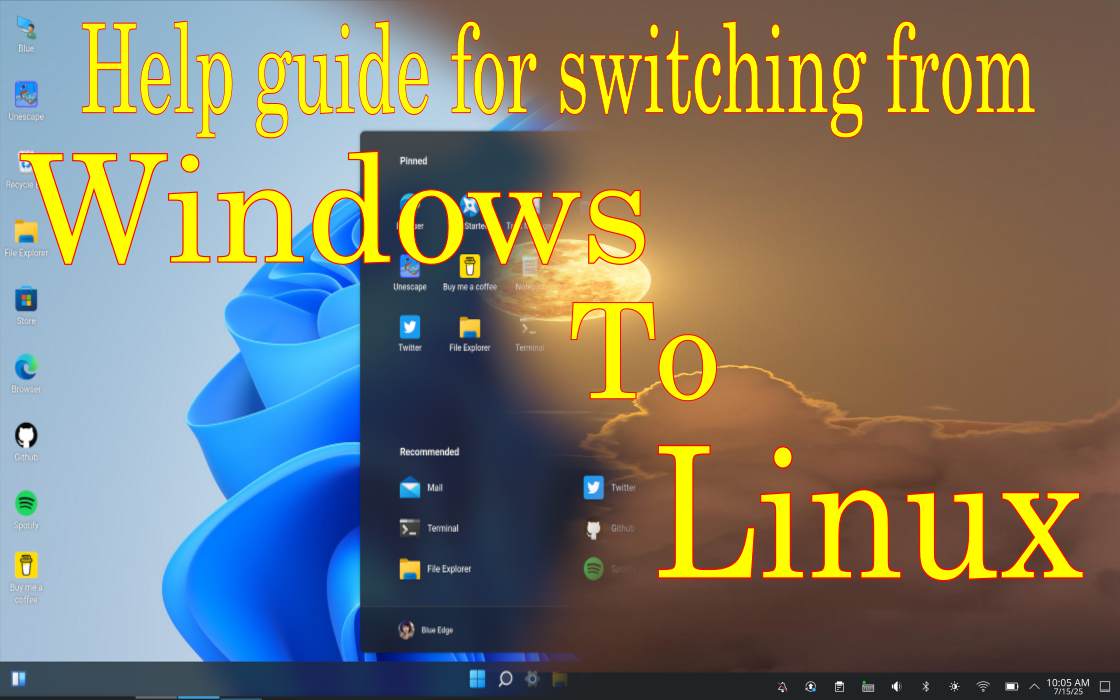


If you’ve ever browsed a tech forum or Linux group, you’ve probably seen the same question pop up again and again:
“I’m switching from Windows to Linux… which distro should I use?”
It’s a fair question — but also the wrong first question.
There’s a growing interest in switching to Linux recently, with Windows 10 nearing its end of life (EOL) and Windows 11’s new requirements leaving perfectly good PCs behind. There also seems to be a growing contingent of users that could move to Windows 11 but just simply don’t want to. If you’re planning on becoming a Windows refugee, we welcome you with open arms — and most of us will even be nice about it (lol).
This guide walks you through everything you need to know before making the switch — not just which distro to pick, but what to expect, how to prepare, and how to actually enjoy the Linux experience without losing your mind in the first week.
Why Switch to Linux?
People switch to Linux for a variety of reasons:
- Your computer is still good – but Windows 11 won’t install, or you just don’t want Windows 11.
- Privacy and control – Linux doesn’t phone home or harvest your data (some will ask you for nonpersonal data for dev purposes).
- Performance – Many Linux distributions run faster and lighter than Windows, especially on older hardware.
- Customization – Want to tweak every detail of your system? Linux lets you.
- Security – Linux is built on strong Unix principles and is less targeted by malware. Keep in mind the more linux users (especially governments) the more malware for Linux will increase.
- Freedom – No licenses, no subscriptions — just open-source goodness (mostly, more or less).
The “Which Distro Should I Use?” Question
Let’s start with some real talk:
❌ You’re asking the wrong first question.
1. We can’t answer that question — yet.
We don’t know how you use your computer or what your technical skill level is. Are you a gamer? A writer? A video editor? These all lead to different answers.
2. More importantly, “Which distro?” shouldn’t even be your first question.
The better question is:
🤔 “Which Desktop Environment (DE) Should I Use?”
The Desktop Environment defines how Linux looks and feels. It’s what you’ll interact with every day — and for new users, this matters more than the underlying distro.
🟦 KDE Plasma
- Extremely customizable and powerful
- Feels familiar to Windows users
- Lightweight despite being full-featured
🟠 GNOME
- Minimalist and modern
- Uses a dock and overview, more like macOS
- A bigger jump from traditional desktop layout
Other DEs worth exploring: Cinnamon, XFCE, Budgie, and more.


DE Choice Dictates Distro Choice
Not all distros support every desktop environment equally.
For example, if you love the idea of Linux Mint but want KDE Plasma, that’s a mismatch — Mint dropped official support for KDE, and community builds are often outdated.
On the other hand:
- Want a top-notch KDE experience?
Try Fedora KDE Spin, Kubuntu, or openSUSE Tumbleweed KDE Plasma.
Personally, I highly recommend and prefer openSUSE Tumbleweed KDE Plasma. - Prefer GNOME? Try Fedora, Pop!_OS, or Ubuntu.
- Like Cinnamon? Stick with Linux Mint or Ubuntu Cinnamon Remix.
Instead of starting with a distro, try different DEs via a Live USB and see what fits.
What You Don’t Need to Worry About (Yet)
- The Terminal: You don’t need to use it all the time. Most distros offer GUI tools for nearly everything.
- File systems and partitions: Don’t sweat EXT4 vs. Btrfs — the installer handles it.
- Gaming on Linux: Yes, it works. Thanks to Steam Proton, Lutris, and Heroic Games Launcher, thousands of games run great. Others do not, know your game before you switch.
Pro tip: A rolling release distro like openSUSE Tumbleweed, Arch (not recommended for new users), or even standard Fedora offers the best gaming experience. They stay current with GPU drivers, Mesa, and kernel updates — crucial for new hardware and game support.
🚫 Reasons Linux Might Not Work for You
Linux isn’t for everyone, and that’s okay. Here are a few things to consider:
- Some applications have no Linux equivalent.
For example, AutoCAD (Autodesk) won’t run natively or under emulation (like WINE or Proton). - Certain games simply won’t run.
Especially those using strict anti-cheat systems like BattlEye or Easy Anti-Cheat. Games with kernel level anti-cheat will not work.
Check game and software compatibility at:
✅ Getting Started: A Smooth Transition Plan
Pro Tip: “Windows Like”
When you see someone mention a “Windows Like” experience, know that this only means the point and click interface and having icons on your desktop. Linux is not Windows and will never actually be “Windows Like” other than the User Interface (UI) look and feel.
Step 1: Try Before You Install
Boot into Linux with a Live USB to test desktop environments and see what feels right. Use tools like Rufus or Balena Etcher.
Another great alternative for testing is https://distrosea.com/. This allows you to run a full blown Linux environment with DE options from your browser. Bear in mind this is running an operating system within your browser (sort of) and it will be slow and laggy, but it will give you a good look at the various distros default look and feel.
One more option and in my opinion the easiest option, install Tumbleweed with the latest Agama installer (easier installer) on a spare partition or in a virtual machine. Then, run Myrlyn to install patterns for all the desktop environments you want to try (example is in the video). This makes a mess of your computer so once you decide on a DE, wipe the drive and start over with the DE you want to run. Grab the most recent Agama build here: https://download.opensuse.org/repositories/systemsmanagement:/Agama:/Devel/images/iso/

Step 2: Back Up Everything
Don’t skip this. Back up your important files before installing or dual-booting.
Step 3: Dual Boot (Optional)
You can install Linux alongside Windows to ease the transition.
Pro tip: Dual boot can be tricky, and also keep in mind Windows will overwrite your MBR (Master Boot Record) and remove the Linux boot option (grub) leaving you with only windows as a boot option on occasion. For best results use a second hard drive to install Linux to, leaving your Windows drive untouched. Otherwise, install Windows first leaving at least 20 Gb unused for the Linux partition. If Windows is already installed, resize the Windows partition leaving at least 20 Gb free from within Windows itself with Windows partition manager. When you install Linux make sure to use only that free partition space and not the whole hard drive. If the planets and stars all align nicely the Linux installer will create and configure your dual boot menu for you.
Step 4: Find Your App Replacements
- MS Office → LibreOffice or OnlyOffice
- Photoshop → GIMP or Krita
- Premiere → Kdenlive or DaVinci Resolve
- Outlook → Thunderbird, Evolution, or KMail (excellent for KDE users)
WINE, Bottles, and Proton can help run many Windows apps, but native apps usually perform better.
Post-Install Tips
- Update your system right away
- Install proprietary drivers if needed (NVIDIA, Wi-Fi, etc.)
- Join a community — Reddit, forums, Discord — Linux users love helping newcomers
My recommended distros
For KDE Plasma:
- Fedora (41 or up) KDE Plasma – Semi Rolling release, works well, Nvidia support iffy.
- openSUSE Tumblweed – Pure Rolling release, very reliable release model, Nvidia support is good.
- Kubuntu – Point release model, very reliable, Ubuntu base, easy to install, has 6 month or 2 year LTS versions (more stable but older software), Nvidia support is very good
For Gnome:
- Fedora – Semi Rolling release, works well, Nvidia support iffy.
- openSUSE Tumblweed – Pure Rolling Release, very reliable release model, Nvidia support is good
- Ubuntu – Point release model, very reliable, easy to install, has 6 month or 2 year LTS versions (more stable but older software), Nvidia support is very good.
Note: The Ubuntu variety of Gnome is very tweeked and has a different look and feel than vanilla Gnome with a menu panel on the left side of the screen.
For Cinnamon:
- Linux Mint – based on Ubuntu LTS, LM team makes the Cinnamon Desktop, new release every 2 years, software tends to be older, Nvidia support is very good.
- Linux Mint Debian edition – Rolling release model based on debian testing, not bleeding edge rolling, Nvidia support is good
Side note: I often see Linux Mint suggested for new users. In my own personal opinion I believe KDE Plasma has a better, new user experience. Linux Mint uses Ubuntu LTS base and after 2 years the software included gets to be a bit dated.
The Learning Curve Is Real — But It’s Worth It
You will hit bumps. You’ll break things. You’ll learn the difference between .deb and .rpm.
For example: Installing NVIDIA drivers is done differently in almost every distro out there. Look for help, ask questions, ignore the assholes — most of us will help.
But once you settle in, you’ll start to really understand your computer. It’s empowering — and kind of addictive.
Final Thoughts
Switching to Linux isn’t about being a tech genius. It’s about wanting control, transparency, and freedom in your computing.
Start with the desktop environment that feels right, choose a distro that supports it well, and enjoy the journey. You might just find yourself wondering why you didn’t make the switch sooner.
Afterword
In closing I’d like to add why my preference is openSUSE Tumbleweed. I’ve been using linux since 1998 and have never found a more stable and reliable distro. Rolling releases are known to be not as stable as point releases, but in my experience Tumbleweed is every bit as stable and reliable as any point release I have ever used. Even with that, it has a roll back feature built in by default that most other distros do not (although it can probably be added manually). That back up is called snapper rollback. If it ever fails to boot, just boot into a working read only image, and in terminal do ‘sudo snapper rollback’ and you’re done. reboot into a working system. That easy, that quick.
Note about the word stable. In Linux land different people use the word ‘stable’ to mean two different things. One is it never changes (very little updates), and the other is it never breaks or fails (as in the opposite of unstable). My use of the word ‘stable’ in the context of Tumbleweed is that it never fails. It has very frequent, nearly daily, updates. You can also set Tumbleweed (or the offshoot Slowroll to updated automatically. Instructions for this is here: Enabling Automatic Updates on openSUSE Tumbleweed and Slowroll
